
Yes, you can schedule a text on many current phones. On iPhone, the Messages app includes Send Later for iMessage and lets you choose a delivery time up to 14 days in the future. On Android, Google Messages supports scheduled messages on phones running Android 7.0 or later: type the message, touch and hold the Send button, choose a date and time, and confirm the schedule.
The two systems handle connectivity differently. Apple says a scheduled iMessage can be delivered even when all your devices are offline, although you need to be online to edit, reschedule, or delete it. Google Messages says that if the Android phone has no Wi-Fi or mobile-data connection at the scheduled time, the message will send when the device reconnects. These details matter for reminders, birthday wishes, appointment confirmations, and time-sensitive work messages.
What Text Wrapping Does in Google Sheets
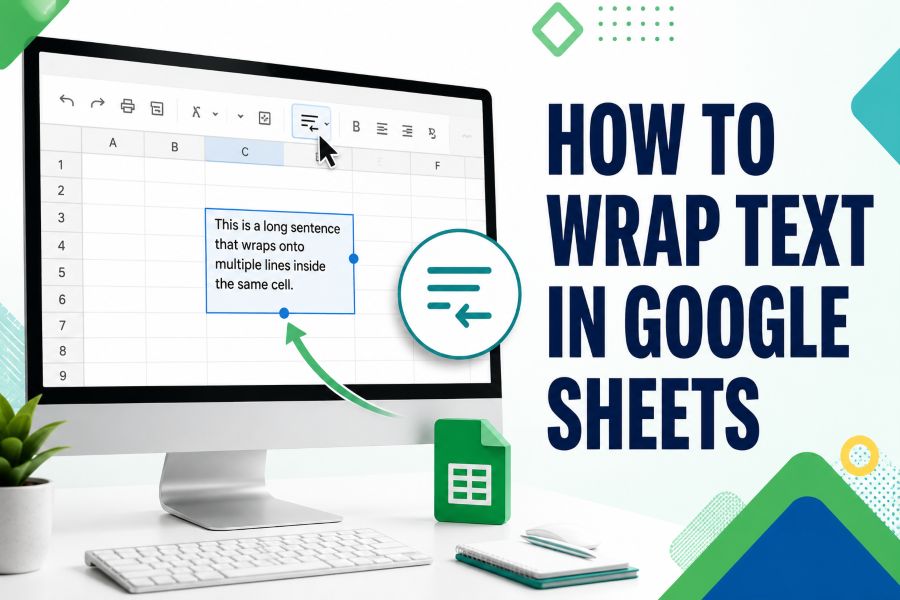
Text wrapping displays a long cell value on multiple lines within the same cell. Instead of widening the column or allowing the text to spill across empty cells, Sheets uses the existing column width and adds line breaks visually. This is useful for notes, descriptions, addresses, survey responses, task details, and long headers.
Wrapping is a formatting choice, not a content edit. The underlying value stays in one cell, filters and formulas continue to use the same data, and copying the cell still copies the original content. Only the way the value appears in the grid changes.
When a column becomes narrower, wrapped text usually needs more lines. When the column becomes wider, it uses fewer lines. This responsive behavior helps you design readable tables without manually editing every sentence, but it can also make rows very tall if a narrow column contains long paragraphs.
How to Wrap Text in Google Sheets on a Computer
Use this method in a desktop browser. You can apply wrapping to one cell, a range, an entire row, an entire column, or the whole sheet.
- Open the spreadsheet in Google Sheets.
- Select the cell or cells containing the text.
- Click Format in the top menu.
- Point to Wrapping.
- Click Wrap.
The selected content should appear on multiple lines inside each cell. If the row height is automatic, Sheets expands it to show the wrapped lines. Click a different cell to see the final layout without the active selection border.
Use the Toolbar Shortcut
Google Sheets also includes a text-wrapping control on the toolbar. Select the cells, click the wrapping icon, and choose Wrap. The icon can be hidden when the browser window is narrow, so check the toolbar’s more-options area if you do not see it.
The toolbar and Format menu apply the same setting. Use whichever route is faster for your workflow. The Format menu is easier to explain to beginners, while the toolbar is convenient when you are formatting many columns.
Wrap an Entire Column or Row
Click a column letter to select the entire column, then apply Wrap. Every existing cell in that column receives the setting, and new values entered into formatted cells normally follow the same wrapping behavior. This is useful for a Notes, Description, Address, or Comments column.
To wrap a row, click the row number before applying the format. To wrap the whole sheet, click the blank rectangle at the top-left corner between the row numbers and column letters, then choose Wrap. Whole-sheet formatting is quick, but use it carefully because numeric and short-label rows may become unnecessarily tall.
How to Wrap Text in the Google Sheets Mobile App
The exact icons can vary slightly between Android and iPhone, but the setting is generally located in the cell-format panel.
- Open the spreadsheet in the Google Sheets app.
- Tap a cell, then drag the selection handles if you need a larger range.
- Tap the Format icon, usually shown as an A with formatting lines.
- Open the Cell tab or cell-format section.
- Turn on Wrap text.
- Tap outside the format panel to review the result.
If the row does not expand, select the row and use the resize or fit-to-data option available in the app. Very narrow columns can produce one or two words per line, so widening the column may create a cleaner mobile view.
For large formatting jobs, the desktop interface is faster because you can select full columns, use keyboard shortcuts, and compare many rows at once. Mobile is best for small corrections or spreadsheets designed to be edited on a phone.
Wrap vs. Overflow vs. Clip
Google Sheets provides three main display behaviors for long cell content. Understanding them helps you choose the right layout instead of applying Wrap everywhere.
Overflow
Overflow lets text extend visually into adjacent empty cells. The value still belongs only to the original cell. If the neighboring cell contains data, the overflowing portion is hidden, which can make a sheet look inconsistent as information is added.
Overflow works for short labels in a casual sheet with plenty of empty space. It is less reliable for structured tables, shared trackers, or exports because the visible text depends on whether nearby cells are blank.
Wrap
Wrap keeps the content inside the column width and displays it on multiple lines. The row height may increase to show every line. This is the best default for notes, descriptions, questions, addresses, and other content that readers need to see in full.
Wrapping improves completeness but can reduce scan speed when a few cells contain very long paragraphs. Combine it with sensible column widths, top vertical alignment, and concise writing to keep the table usable.
Clip
Clip hides the portion that does not fit inside the cell’s visible width. The full value remains stored and appears in the formula bar when the cell is selected. Clipping preserves compact row heights and prevents text from covering nearby columns.
Use Clip for IDs, internal codes, long URLs, or optional details that do not need to be fully visible in the grid. Do not use it for essential instructions unless users know to select the cell to read the complete value.
How to Make Wrapped Text Fully Visible
Wrapping can be active while some lines remain hidden. This usually happens because the row has a fixed height, the column is extremely narrow, cells are merged, or the content contains unusual spacing.
Fit the Row Height to the Data
Select the affected row, right-click the row number, and choose the resize option. Select Fit to data when available. Sheets recalculates the height based on the visible content. You can also drag the lower boundary of the row header to increase the height manually.
If you previously set an exact row height, automatic wrapping may not override it. Fit to data restores a flexible height. Recheck the result after changing fonts, column widths, or line spacing because those changes affect how many lines are required.
Widen the Column
A slightly wider column can reduce a five-line cell to two or three lines and make the entire table easier to scan. Drag the boundary between column letters or use the column-resize menu. Avoid making one text column so wide that important fields move off-screen.
Balance is the goal. Give description columns more width and keep dates, statuses, quantities, and IDs compact. Freeze key columns if the sheet requires horizontal scrolling.
Check Merged Cells
Merged cells can complicate automatic row sizing and wrapping. If the text is cut off, temporarily unmerge the range and test the layout. In data tables, merged cells also interfere with sorting, filtering, and copying, so they are best reserved for titles or presentation-only sections.
How to Add a Manual Line Break in a Cell
Automatic wrapping decides where lines break based on the column width. A manual line break lets you control the exact point, such as separating a street address, creating a two-line label, or placing a short title above a note.
Double-click the cell or press Enter to edit it, place the cursor at the desired position, and use the platform’s insert-line-break command. Google’s editing guidance exposes an Insert line break action on supported mobile interfaces, and keyboard behavior can vary by device and browser. After inserting the break, keep Wrap enabled so every line displays correctly.
Use manual breaks sparingly. They can look awkward when the column width changes because the fixed break remains even when automatic wrapping would choose a better position. For large datasets, consistent automatic wrapping is easier to maintain.
How to Wrap Text Without Ruining the Sheet Layout
Start by formatting only the columns that contain variable-length text. Notes, descriptions, product names, addresses, and feedback fields benefit from wrapping. Dates, prices, short statuses, and identifiers usually do not need it.
Set a practical column width before judging row height. Then use top vertical alignment for multi-line cells so values in the same row begin at a consistent position. Centered vertical alignment can look neat in short tables but may make long task lists harder to scan.
Keep cell content concise. A spreadsheet is not always the best place for multi-page explanations. Link to a document when a note becomes too long, or split the information into dedicated fields such as Summary, Owner, Next step, and Due date. Structured data is easier to filter and analyze than paragraphs packed into one cell.
Common Problems and Fixes
Text Still Spills Into the Next Cell
The selected cell may still be set to Overflow, or the wrapping format may have been applied to a different range. Reselect the cell, open Format > Wrapping, and choose Wrap. Check that you are not viewing a merged range that behaves differently.
The Row Becomes Too Tall
Widen the column, shorten the content, reduce unnecessary blank lines, or use Clip for optional details. A huge row often signals that one cell contains a paragraph that should be moved to a note or document.
Wrapped Text Is Hidden
Resize the row and choose Fit to data. Check for a fixed row height, merged cells, or text color that matches the background. Also confirm that the content does not begin with many invisible spaces or line breaks.
Pasted Text Changes the Wrapping
Pasting can bring source formatting into the sheet. Use a paste-without-formatting or paste-values option when appropriate, then reapply Wrap to the destination range. Formatting the entire target column first can make repeated data entry more consistent.
The Printed Sheet Cuts Off Text
Open print settings and review page scale, margins, repeated frozen rows, and selected print range. A sheet that looks fine on screen can become too narrow when forced onto one page. Use Fit to width rather than Fit to page when vertical readability matters, and inspect every print-preview page.
Frequently Asked Questions
What is the shortcut for wrapping text in Google Sheets?
The most dependable path is Format > Wrapping > Wrap or the toolbar wrapping button. Keyboard menu shortcuts can vary by operating system and browser, so the menu is easier to follow consistently.
Can I make Wrap the default for a column?
Yes. Select the entire column by clicking its letter, then apply Wrap. Existing and subsequently entered values in those formatted cells use the column’s wrapping setting unless other formatting is pasted over it.
Why does wrapped text disappear when I merge cells?
Merged ranges can interfere with automatic row sizing. Increase the row height manually or unmerge the cells. For sortable data, avoid merging and use alignment or formatting to create visual grouping instead.
Does wrapping change the cell value?
No. Wrap changes only the display. Formulas, filters, lookups, exports, and copied values continue to use the original cell content.
How do I stop text from overflowing without making rows taller?
Choose Clip instead of Wrap. Clip hides the portion that does not fit but retains the full value in the cell. Users can select the cell to view the complete content in the formula bar.
Final Takeaway
To wrap text in Google Sheets, select the relevant cells and choose Format > Wrapping > Wrap, or use the toolbar button. On mobile, open the cell-format options and turn on Wrap text. If lines remain hidden, fit the row height to the data and review merged cells.
In summary, Wrap is best when readers need the full content, Overflow suits short labels beside empty cells, and Clip keeps a compact grid when the full value does not need to be visible. Combine the right mode with sensible column widths and concise cell content for a clean, readable spreadsheet.