
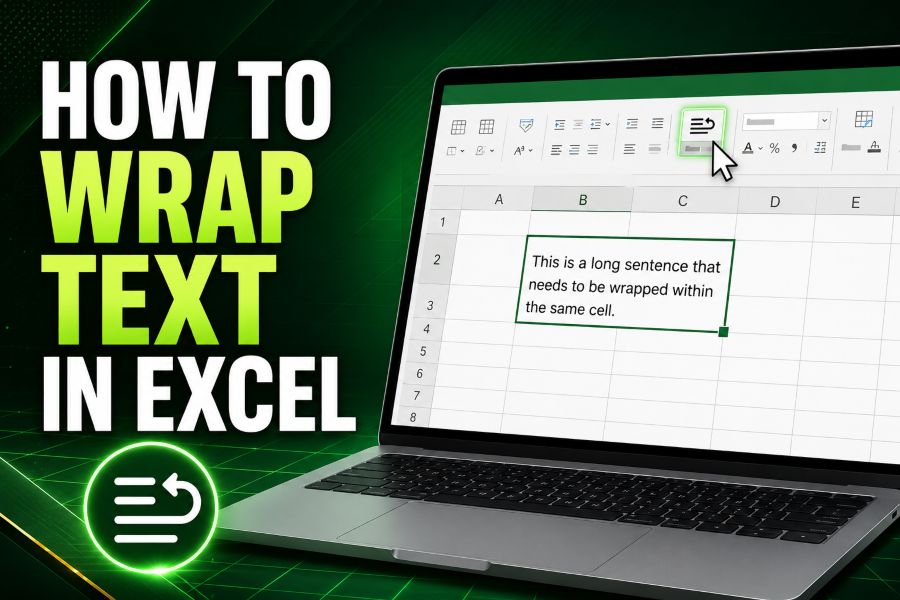
To wrap text in Excel, select the cell or range, open the Home tab, and click Wrap Text in the Alignment group. Excel displays the content on multiple lines inside the same cell and adjusts wrapping whenever the column width changes. If all lines are not visible, use Home > Format > AutoFit Row Height or manually increase the row height.
For a line break at an exact position, edit the cell, place the cursor where the new line should begin, and press Alt + Enter on Windows. Automatic wrapping is best for responsive layouts, while manual line breaks are useful for addresses, labels, and short structured text. Neither method changes the cell’s underlying meaning for formulas; it changes how the content is displayed.
What Wrap Text Does in Excel
Wrap Text keeps long content within a cell’s column width by displaying it on multiple lines. Without wrapping, text may extend into neighboring empty cells or appear cut off when the adjacent cell contains data. Wrapping makes tables more compact horizontally and keeps descriptions connected to the correct row.
Excel calculates the line breaks from the current column width, font, size, indentation, and cell content. Widening the column reduces the number of wrapped lines, while narrowing it creates more. This automatic adjustment makes Wrap Text suitable for tables that will be resized, printed, or viewed on different screens.
Wrapping is formatting. The full value remains in one cell, and formulas use that value rather than the visual line arrangement. A manual line break does insert a line-break character into text, but the information still remains in the same cell.
How to Wrap Text Automatically in Excel for Windows
Microsoft’s standard method works in current desktop versions, including Microsoft 365 and recent perpetual releases.
- Open the worksheet.
- Select the cell or range you want to format.
- Go to the Home tab.
- Find the Alignment group.
- Click Wrap Text.
Excel displays the text on additional lines based on the column width. If you select several cells, the same format applies to the entire range. Click Wrap Text again to turn automatic wrapping off.
Wrap a Whole Column or Row
Click a column letter to select the entire column, then choose Wrap Text. This is useful for Description, Notes, Address, Comments, or Product Name fields. New text entered into the formatted cells normally follows the same setting.
To wrap an entire row, click its row number before applying the command. You can also select the full worksheet with the Select All button at the intersection of the row and column headers. Whole-sheet wrapping is rarely necessary, because short numeric fields and compact codes do not benefit from taller rows.
Use Format Cells Instead
For more alignment options, select the cells and open Format Cells. On Windows, you can right-click the selection and choose Format Cells, then open the Alignment tab and enable Wrap text. This dialog also includes horizontal and vertical alignment, indentation, orientation, Shrink to fit, and Merge cells.
The ribbon button is faster for everyday work, while Format Cells is useful when several alignment settings must be applied together. Avoid enabling Wrap text and Shrink to fit without a clear reason, because one adds lines while the other reduces font size; the result can be difficult to predict.
How to Wrap Text in Excel for Mac
The process on Mac is similar. Select the cells, open the Home tab, and click Wrap Text. The content wraps to match the column width and readjusts when you change that width.
If wrapped content remains hidden, check the row height. Use the row formatting controls to AutoFit the height or drag the lower row boundary. Fixed-height rows and merged cells are common reasons automatic sizing does not show every line.
Ribbon layouts can differ slightly between Excel releases and window sizes. If Wrap Text is not visible, expand the window, look in the Alignment controls, or open the Format Cells dialog and use the Alignment tab.
How to Insert a Manual Line Break in an Excel Cell
Automatic wrapping lets Excel choose each break. A manual line break forces a new line at a specific point.
- Double-click the cell, or select it and press F2 on Windows.
- Place the text cursor where the next line should start.
- Press Alt + Enter on Windows.
- Repeat if you need additional lines.
- Press Enter to finish editing the cell.
Microsoft documents Alt + Enter as the Windows command for a line break. On other platforms, the key combination may differ, so use the current Excel help or the Insert Line Break command provided by the interface. After adding a manual break, keep Wrap Text enabled if the cell does not display every line.
When to Use Manual Line Breaks
Manual breaks work well for a name and subtitle, a multi-line address, a short label, or a compact list that must follow a specific visual structure. They are also useful in a dashboard where predictable line placement matters more than flexible resizing.
Do not manually break every sentence in a long description column. If the column width changes, fixed breaks can create awkward short lines. Automatic wrapping is more maintainable for imported data, shared tables, and reports that will be resized.
How to AutoFit Wrapped Text
Excel usually adjusts the row height after wrapping, but not in every workbook. A previously fixed height, merged range, or custom layout can prevent the full content from appearing.
- Select the affected row or rows.
- Open the Home tab.
- In the Cells group, click Format.
- Choose AutoFit Row Height.
You can also double-click the lower boundary of a row header to fit the row to its contents. If the result is still wrong, temporarily unmerge cells and test again. Microsoft notes that fixed row heights and merged ranges can prevent all wrapped text from being visible.
Set a Specific Row Height
Use Home > Format > Row Height when the workbook requires uniform rows. Enter a value large enough for the expected number of lines. A fixed height creates a consistent appearance, but it may hide future text if users add longer content.
For forms and templates, test the longest realistic entry before locking the height. If users need to read every word, AutoFit is safer than a decorative fixed layout.
Wrap Text vs. Shrink to Fit vs. Wider Columns
These three choices solve different layout problems. Wrap Text adds vertical space, Shrink to fit reduces the font, and a wider column adds horizontal space.
Choose Wrap Text for Readability
Wrap Text preserves the font size and shows the entire value on multiple lines. It is the best default for comments, instructions, descriptions, questions, and addresses. The tradeoff is taller rows and a less compact vertical view.
Choose Shrink to Fit for Short, Fixed Fields
Shrink to fit reduces the displayed font size until the value fits the cell width. It can help with a short code or label in a fixed template, but long values may become too small to read. Because the font size changes with the content, cells in the same column can look inconsistent.
Widen the Column When Space Is Available
Widening the column keeps text on fewer lines and can improve scanning. It is often the cleanest solution for a worksheet viewed mainly on a wide screen. However, very wide columns push other fields out of view and can create poor print layouts.
The best result often combines a moderate column width with Wrap Text. Keep dates, quantities, statuses, and IDs narrow, then allocate more space to one or two descriptive columns.
How to Keep Wrapped Tables Easy to Read
Use top vertical alignment for rows containing several lines. This keeps the beginning of each value aligned across the row and makes task lists, issue trackers, and comparison tables easier to scan. Middle alignment can work for short records but creates uneven starting points when descriptions vary in length.
Write concise cell content. If one cell contains a full report, move the details to a note, comment, linked document, or separate worksheet. Break reusable information into fields such as Summary, Owner, Status, Due Date, and Next Action. Structured columns support filtering and analysis better than long prose.
Use a readable font size and sufficient row height. Avoid excessive indentation, rotated body text, or heavy borders around every multi-line cell. Freeze header rows and key columns when wrapping makes the sheet longer or wider.
Common Problems and Fixes
Wrap Text Is On but Content Is Hidden
Use AutoFit Row Height and check for a fixed row height. If the cell belongs to a merged range, unmerge it temporarily and test again. Increase the row manually if the workbook’s layout requires merging.
The Row Is Extremely Tall
Look for accidental manual line breaks, trailing blank lines, a narrow column, or a large font. Edit the cell and remove unnecessary breaks, then widen the column slightly and AutoFit the row. Move unusually long notes outside the main table.
Text Does Not Wrap Until I Leave the Cell
Excel may not finalize the display while the cell is still in Edit mode. Press Enter or select another cell to commit the value. Microsoft notes that some formatting commands cannot be changed while Excel is actively editing the cell.
AutoFit Does Not Work with Merged Cells
Merged cells frequently prevent reliable automatic row sizing. Avoid merging in data tables. For a presentation layout, set a manual row height large enough for the content or replace the merged range with Center Across Selection where appropriate.
Printed Text Is Cut Off
Check print preview, scaling, margins, orientation, page breaks, column widths, and row heights. Scaling a wide sheet to one page can make text tiny even when wrapping works. Fit columns to one page wide while allowing multiple pages vertically, then inspect each page before printing or exporting to PDF.
Pasted Data Loses Wrapping
A standard paste can bring source formatting and overwrite the destination settings. Use Paste Values or a paste option that preserves destination formatting, then reapply Wrap Text to the full column. In recurring import workflows, use a formatted Excel table or template and validate the range after refresh.
Frequently Asked Questions
What is the keyboard shortcut for Wrap Text in Excel?
Ribbon key sequences can vary by platform and version. The consistent method is to select the cells and click Home > Wrap Text. For a manual line break inside a Windows cell, use Alt + Enter.
Why does Excel wrap text differently after I resize a column?
Automatic wrapping is based on the available width. A narrower column requires more lines, and a wider column requires fewer. This is expected behavior and is one reason automatic wrapping adapts better than manually inserted breaks.
Does Wrap Text affect formulas or calculations?
No. It changes the display, not the numeric or text value used by formulas. Manual line breaks become characters inside text values, so they can matter to text comparisons, exports, and cleaning operations.
How do I wrap text in every cell in a column?
Click the column letter to select the complete column, then click Home > Wrap Text. Check the row heights afterward and AutoFit any rows that do not show their full content.
Can Excel wrap a very long word or URL?
Wrapping behavior may not split every long unbroken string as expected. Widen the column, reduce the font size, add a deliberate break, or display a shorter hyperlink label. Keep the full URL in the hyperlink target rather than forcing it into the visible table.
Final Takeaway
To wrap text in Excel, select the cells and click Home > Wrap Text. If any lines are hidden, apply AutoFit Row Height and check for fixed-height or merged cells. Use Alt + Enter on Windows when you need a line break at a precise location.
In summary, automatic wrapping is the most flexible option for changing column widths, manual breaks are best for small structured labels, and Shrink to fit should be used cautiously. A balanced column width, readable font, and top alignment will keep multi-line spreadsheets clear on screen and in print.