
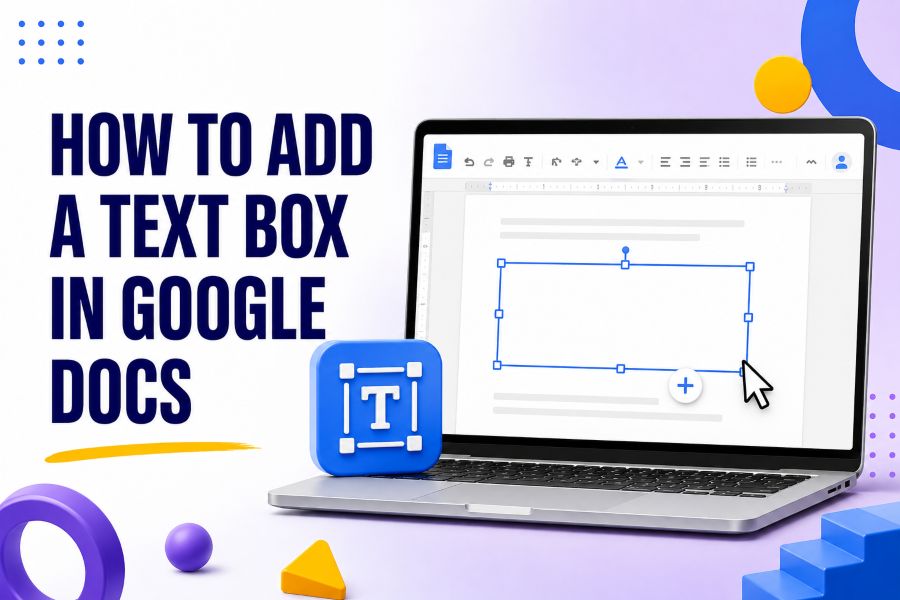
To add a text box in Google Docs on a computer, open your document and choose Insert > Drawing > New. In the Drawing window, click the Text box icon, drag to create the box, type and format your text, then select Save and close. Google Docs inserts the drawing into the page as an object that you can resize, move, and edit.
The Drawing method is best for labels, callouts, side notes, diagram text, and small design elements. If you need a box that holds several paragraphs and behaves naturally as the document changes, a one-cell table is often easier. Mobile editing is more limited, so creating a true Drawing text box is usually simpler in the desktop web version of Google Docs.
Why Google Docs Uses Drawings for Text Boxes
Google Docs does not place a standalone text-box button directly on the normal document toolbar. Instead, it creates a text box inside an embedded Google Drawing. The drawing acts as a container for text, shapes, lines, and images, allowing those elements to be arranged together before being placed in the document.
This approach gives you more design control than an ordinary paragraph. You can position text inside a shape, adjust borders and fills, layer objects, or build a simple diagram. The tradeoff is that text inside a drawing does not flow through the document like regular body text. It is better for short, visual content than for long explanations.
Before creating the box, decide what job it needs to do. Use a Drawing text box when precise visual placement matters. Use a paragraph, heading, or one-cell table when readability, accessibility, collaboration, and automatic page flow matter more than free positioning.
How to Insert a Text Box in Google Docs on a Computer
The standard method works in the desktop web version of Google Docs. Keep the wording ready before you start so you can size and format the box around the final content.
- Open the Google Docs document you want to edit.
- Place the cursor near the location where the text box should appear.
- Click Insert in the top menu.
- Point to Drawing, then choose New.
- In the Drawing window, click the Text box icon. It looks like a letter T inside a small box.
- Click and drag on the canvas to draw the text box.
- Type or paste your text inside the box.
- Format the text and box as needed.
- Click Save and close to insert the drawing into the document.
The object appears near the cursor position. Click it once to display resizing handles and layout controls. If the initial size or position is not right, you can adjust it without rebuilding the drawing.
Add Text Without Drawing a Fixed Box First
Google’s Drawing interface may also let you select the Text box tool and click once on the canvas, then type. The text area expands as you enter content. Dragging first gives you a more predictable width, which is useful when the text must wrap inside a defined shape.
If you cannot find the icon, widen the Drawing window or check the toolbar for a T-in-a-box symbol. Do not select Word art unless you want decorative display lettering. Word art and a text box serve different purposes: a text box is for editable lines and paragraphs, while Word art is for stylized headline text.
How to Format a Google Docs Text Box
Most formatting happens while the Drawing window is open. Double-click the inserted drawing in the document, or select it and choose Edit, to return to the Drawing canvas.
Format the Text
Select the text inside the box, then use the toolbar to change the font, size, bold, italic, underline, text color, and alignment. Keep the font consistent with the surrounding document unless the box is intended as a distinct callout. A slightly heavier heading and a readable body size usually create enough hierarchy.
Avoid shrinking the font just to force a paragraph into a small box. Increase the box width or height first. A text box with comfortable padding and short lines is easier to scan than a crowded box with tiny type.
Change the Border and Background
Select the text box or the shape containing the text. Use the line-color control to change the border, the line-weight control to make it thicker or thinner, and the fill-color control when the object supports a background fill. A light background with a darker border works well for notes and warnings.
A plain text box may provide fewer background controls than a shape. If you want a colored panel, insert a rectangle or rounded rectangle from the Shape menu, double-click it to add text, and format the shape’s fill and border. This creates the appearance of a designed text box while keeping the text editable inside the drawing.
Align and Space the Content
Use horizontal alignment to place text at the left, center, or right. For most multi-line text, left alignment is easiest to read. Center alignment suits short labels, captions, or a single statement. If the box feels crowded, enlarge the shape rather than adding manual spaces or repeated blank lines.
Keep contrast high enough for comfortable reading. Dark text on white or a very light fill is the safest choice. If you use a dark fill, switch to white or another light text color and check that links and emphasized words remain visible.
How to Move and Resize a Text Box
After you click Save and close, select the drawing in the document. Drag a corner handle to resize it proportionally. Drag a side handle when you need to change only the width or height, but watch for stretched objects or awkward text wrapping.
To move the drawing, choose a text-wrapping option and drag it to the desired position. In line treats the drawing like a large character inside a paragraph, which is predictable and stable. Wrap text lets ordinary text flow around the object. Break text keeps document text above and below it. Depending on the current Docs interface, additional position controls may appear.
If the object jumps when you edit nearby paragraphs, use an inline position or place the drawing in a dedicated paragraph. Floating layouts look flexible, but they can shift when text is added, margins change, or the document opens on another screen. Stability is more important than precise decoration in a long collaborative document.
How to Edit an Existing Text Box
Double-click the drawing to reopen it. If that does not work, click the drawing once and select Edit from the small toolbar or menu that appears. Then click inside the text box and update the wording, style, shape, or position.
When finished, click Save and close again. The drawing in the document updates in place. This is safer than deleting and recreating the object because it preserves the object’s approximate location and wrapping settings.
If collaborators cannot edit the text, confirm that they have Editor access to the document rather than Viewer or Commenter access. Also verify that the object is an editable Drawing and not a screenshot or flattened image. Text inside an uploaded image cannot be edited as a normal text box.
How to Add a Text Box in the Google Docs Mobile App
The Google Docs mobile app offers fewer Drawing controls than the desktop web version. Depending on the device and current app version, you may be able to view or reposition an existing drawing but not create the same kind of embedded text box from scratch.
The most reliable workflow is to open Google Docs in a desktop browser, insert the text box through Insert > Drawing > New, and then continue ordinary text editing on mobile. If you only have a phone or tablet, use a one-cell table as a practical substitute. It creates a bordered area that can hold editable text without relying on the Drawing canvas.
Avoid forcing desktop mode in a mobile browser for an important document unless you test the result. Menus can be difficult to use on a small screen, and dragging a box precisely may be frustrating. Create the visual object on a computer, then use mobile for small wording changes.
The Best Alternative: Use a One-Cell Table
A one-cell table is often the better choice for a note, definition, tip, quotation, or multi-paragraph callout. It remains part of the document’s normal flow, expands with the text, and is easier to select and edit.
- Place the cursor where you want the boxed content.
- Choose Insert > Table.
- Select a 1 x 1 table.
- Type or paste the content into the cell.
- Adjust the border color, border width, cell background, alignment, and padding through the toolbar or Table options.
Unlike a Drawing text box, the table cell automatically grows as you add lines. It is also easier to keep aligned with page margins. This makes it suitable for longer content and collaborative documents that will continue changing.
When a One-Cell Table Is Better
Choose a table when the content is more important than the visual placement. Examples include a key takeaway, policy note, warning, short checklist, quotation, or definition. Tables are also easier to copy between documents without losing the basic box structure.
Choose a Drawing when the box must float beside text, overlap another object, connect to arrows, or form part of a diagram. The takeaway is simple: use tables for document structure and Drawings for visual composition.
Common Text Box Problems and Fixes
The Text Box Is Cut Off
Reopen the drawing and increase the box height or width. Check whether the font size or line spacing changed after pasting. Do not rely on hidden overflow; make every line visible before saving.
The Box Moves When I Type
Select the drawing and switch to In line or Break text for more stable placement. Floating wrap layouts respond to surrounding paragraphs, so adding text can push the object to a new location. A one-cell table is another stable alternative.
I Cannot Type in the Box
Make sure you reopened the Drawing editor and selected the Text box tool or double-clicked a text-enabled shape. If the object is an image, it cannot accept editable text. Create a new drawing or place a separate text box over the image inside the Drawing canvas.
The Box Looks Blurry
Text inside an embedded drawing may not look as crisp at every zoom level as ordinary document text. Check the document at 100 percent and in print preview. Use regular Docs text or a one-cell table when maximum text clarity is more important than layout flexibility.
The Background Color Will Not Change
A plain text box may not expose the same fill options as a shape. Insert a rectangle or rounded rectangle, add the text inside it, and apply the desired fill. Keep the border subtle so the box supports the content instead of overpowering it.
Frequently Asked Questions
Is there a text box button in Google Docs?
The normal Docs toolbar does not work like Google Slides, but you can insert a text box through Insert > Drawing > New. The actual text-box tool appears inside the Drawing window.
Can I put a border around text without a Drawing?
Yes. A one-cell table is the simplest method: insert a 1 x 1 table, add the text, then format the cell border and background. This option expands naturally when the text becomes longer.
Can text wrap around a text box?
Select the inserted drawing and choose a wrapping option such as Wrap text. You can then move the object and adjust the margin between the drawing and surrounding paragraphs. If the layout shifts too much, use In line or Break text.
Can I copy a text box to another Google Doc?
Yes. Select the inserted drawing, copy it, and paste it into another document where you have editing access. Recheck its size, position, and wrapping because page margins and surrounding content may differ.
Are Google Docs text boxes accessible?
Ordinary body text is generally easier for reading tools and collaborators to navigate than text embedded in a drawing. For essential information, keep a readable version in the document’s normal text flow. Use drawings for supplemental visual content and add descriptions where appropriate.
Final Takeaway
To add a text box in Google Docs, use Insert > Drawing > New, select the Text box tool, draw the box, enter and format the text, and click Save and close. Reopen the drawing whenever you need to change the content or style.
In summary, a Drawing text box is best for short, visual elements, while a one-cell table is better for longer boxed content that must grow and move with the document. Choosing the right method keeps the page attractive without making future edits difficult.